 Your Widgets
Clock, calendar and quote widgets you design yourself.
Pick a style from the Widget Library, then make it yours with your own photos, colours and fonts.
Get it on the App StoreFree to download for iPhone.
On your Home Screen
Widgets come in small, medium and large sizes, so you can fit them around your apps.
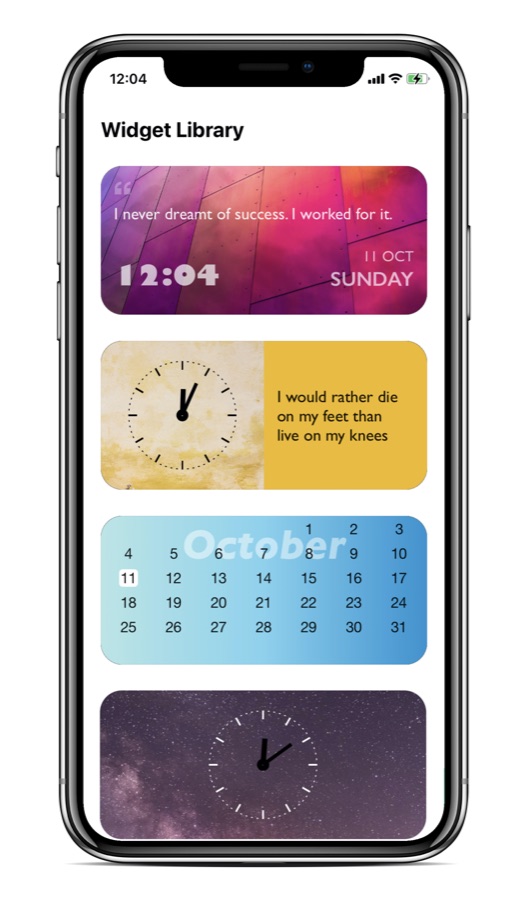
A library of designsStart from a ready-made clock, calendar or quote widget. 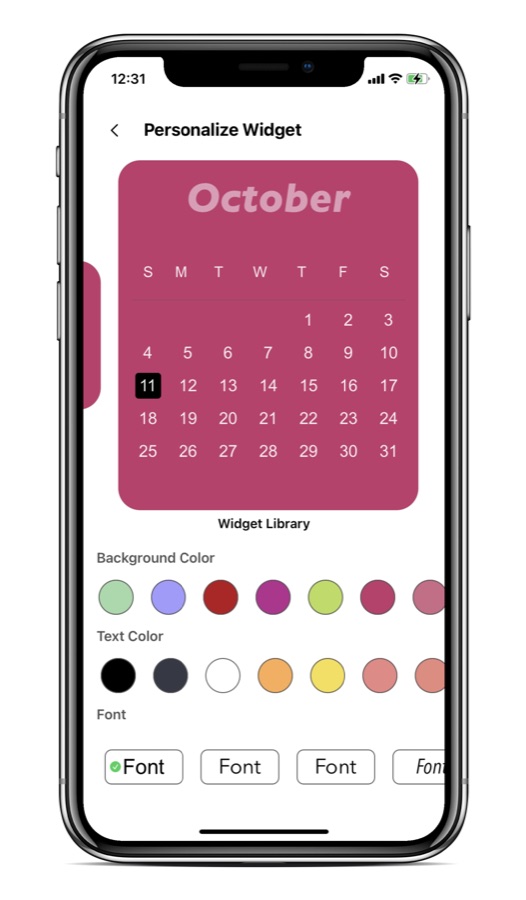
Make it yoursChoose your own photo, background, text colour and font. 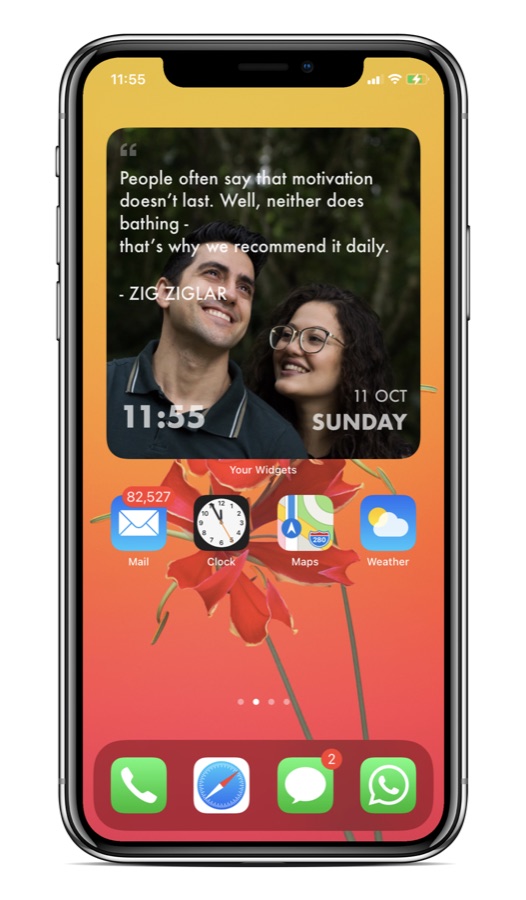
A quote at every glanceQuote widgets show a new quote every minute. 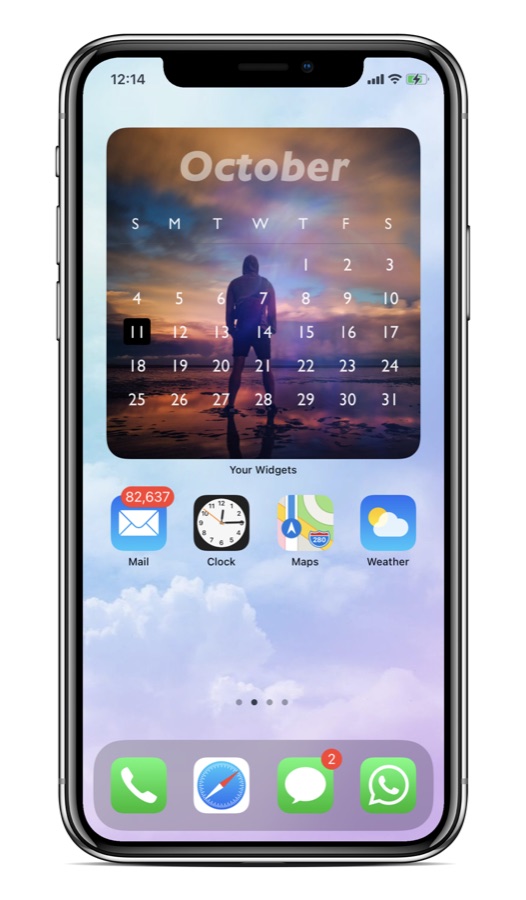
Calendars and clocksKeep the month, date and time in view.
Help
How do I add a widget to my Home Screen?
- Open Your Widgets and choose a design from the Widget Library.
- On your Home Screen, touch and hold an empty area until the apps jiggle.
- Tap Edit or + in the top corner, then Add Widget.
- Search for Your Widgets, pick a size and tap Add Widget.
How do I change the design my widget shows?
Open the app, choose a different design in the Widget Library or personalize one, and save it. The widget on your Home Screen updates to show your latest choice.
How do I restore my subscription on a new iPhone?
Make sure you're signed in with the same Apple Account you subscribed with. Then open the app, go to the subscription screen and tap Restore.
How do I cancel my subscription?
Subscriptions are managed by Apple. On your iPhone, open Settings, tap your name, then Subscriptions, and choose Your Widgets. Cancel at least 24 hours before your renewal date to avoid the next charge.
What happens to the photos I use?
Photos you add to a widget are stored on your iPhone and aren't uploaded or shared. Read the privacy policy for details.
Still need help? Email info@versionn.com